My Cayenne Install
For the Cayenne Electric · iPhone

Your Cayenne Electric, one swipe away.

Battery, climate, trips and where it’s parked — each on its own calm card, with a 3D model of your car in its own paint colour. And a racing game built from your real drives.

Private beta · invite only · iOS 18 or later

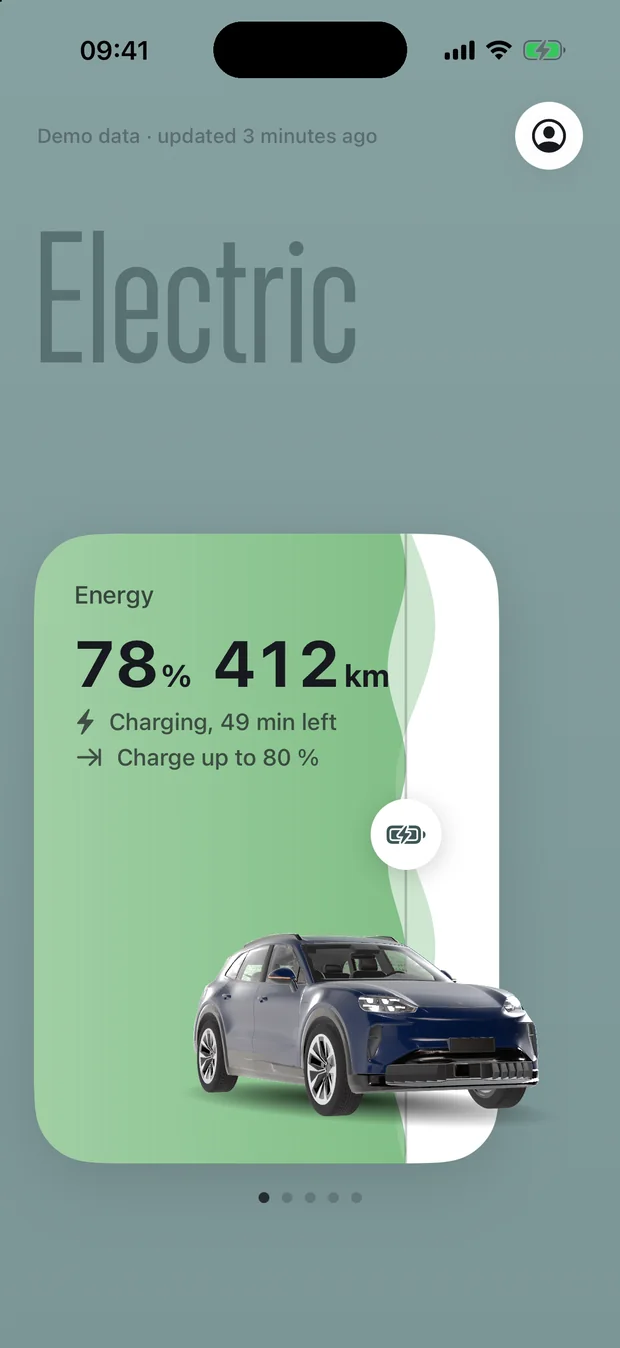
The Electric view: 78 % charge, 412 km range, charging with 49 minutes left, and the 3D car on the card

Five views. Swipe, like in the app.

Every view has its own studio colour and its own angle on the car.

Electric view

Electric

Energy

The card is the battery.

  • It fills up to your charge level and shifts from red through amber to deep green.
  • Range, charging state and time until full at a glance.
  • Drag the “charge up to” slider to set the target.
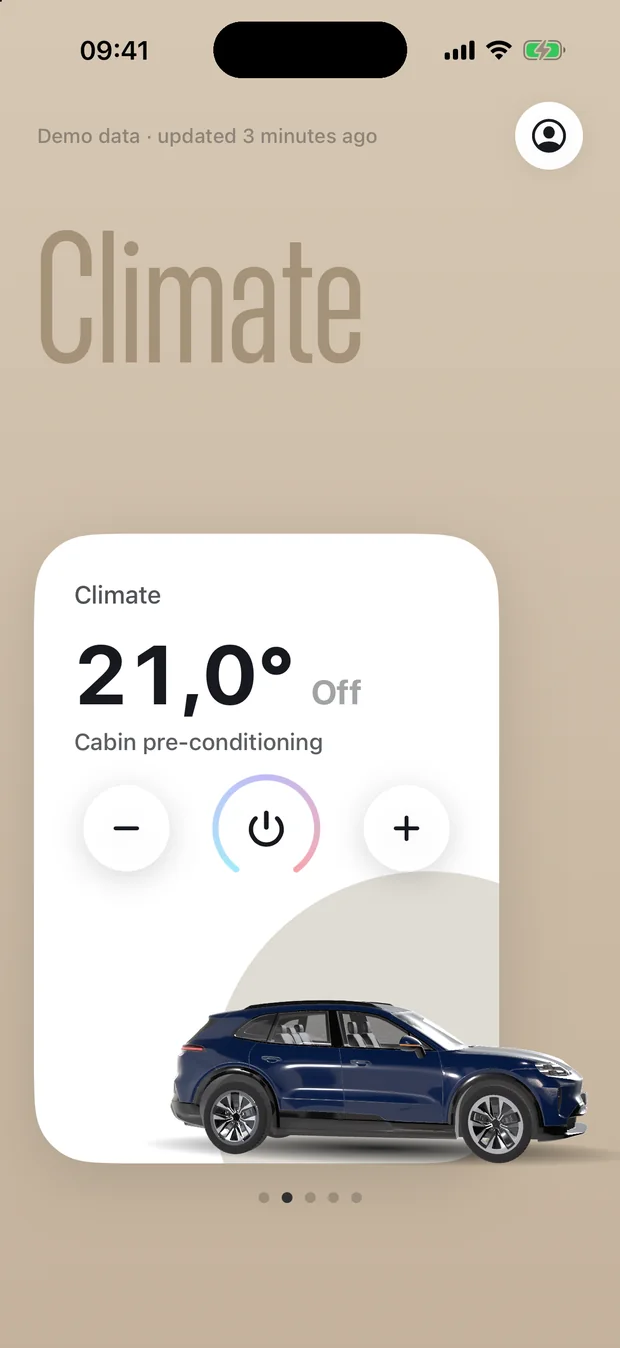
Climate view with 21 °C set point

Climate

Climate & access

Step into a warm car.

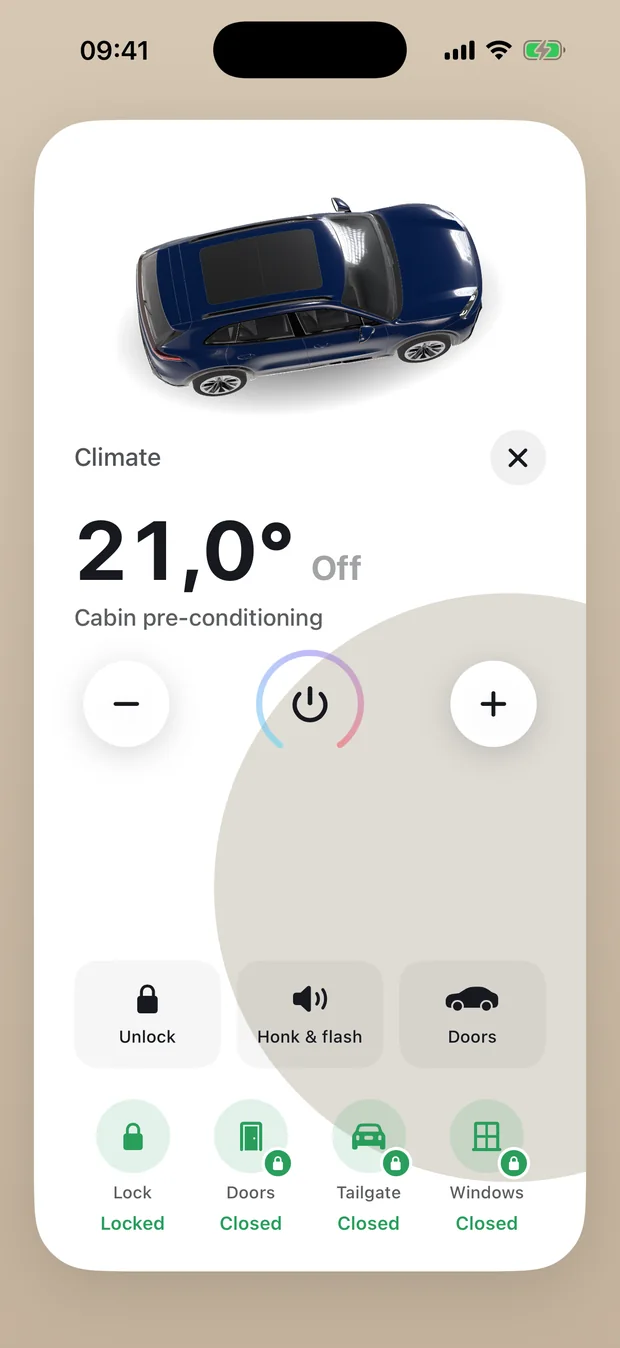
  • Set the cabin temperature with − / power / + and pre-condition before you leave.
  • Lock and unlock (with your S-PIN), honk and flash.
  • See whether doors, tailgate and windows are closed — the 3D doors open when the real ones do.
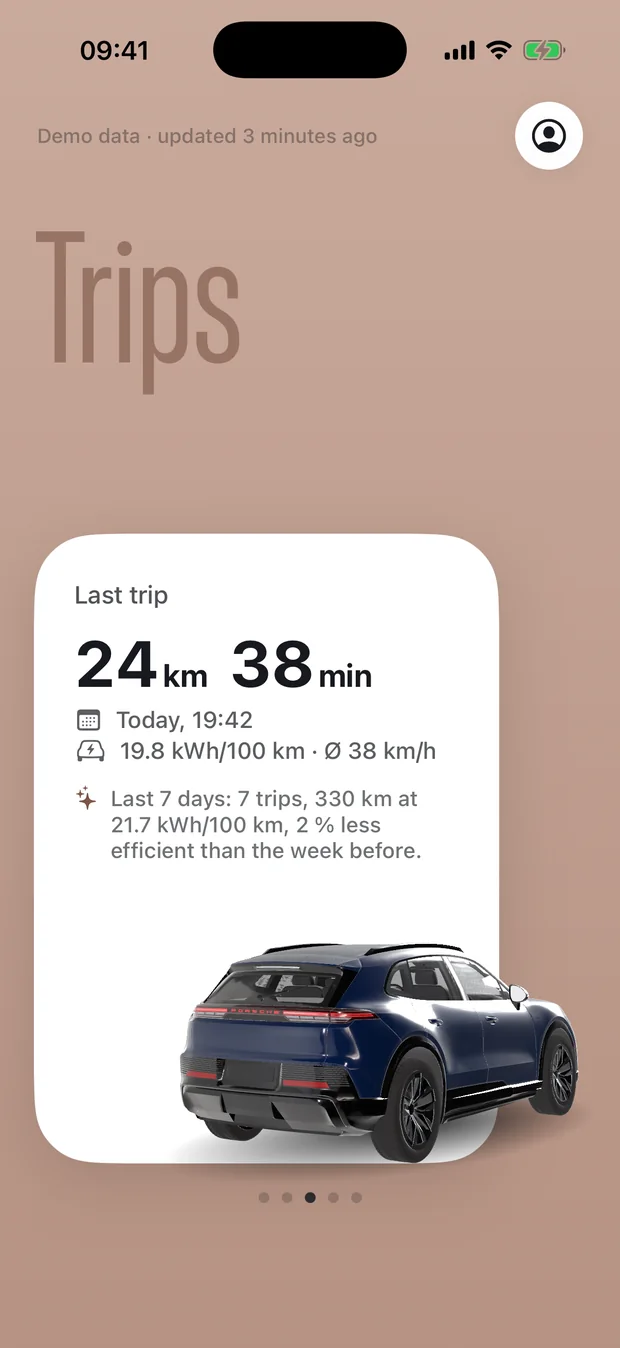
Trips view: last trip 24 km in 38 minutes

Trips

Last trip

Your drives, summed up.

  • Distance, time, consumption and average speed of every trip.
  • Ask about your driving in your own words — answered on-device by Apple Intelligence, with the numbers worked out by the app.
  • Record a drive with GPS; it becomes a trip — and a race track.
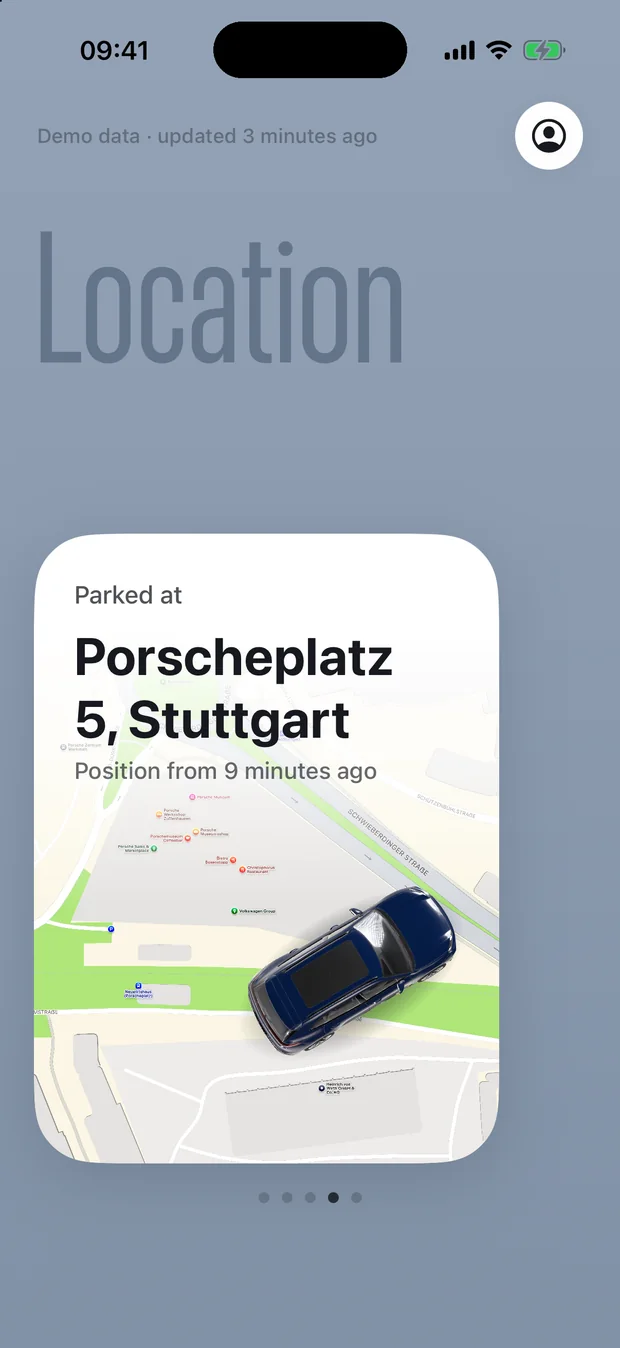
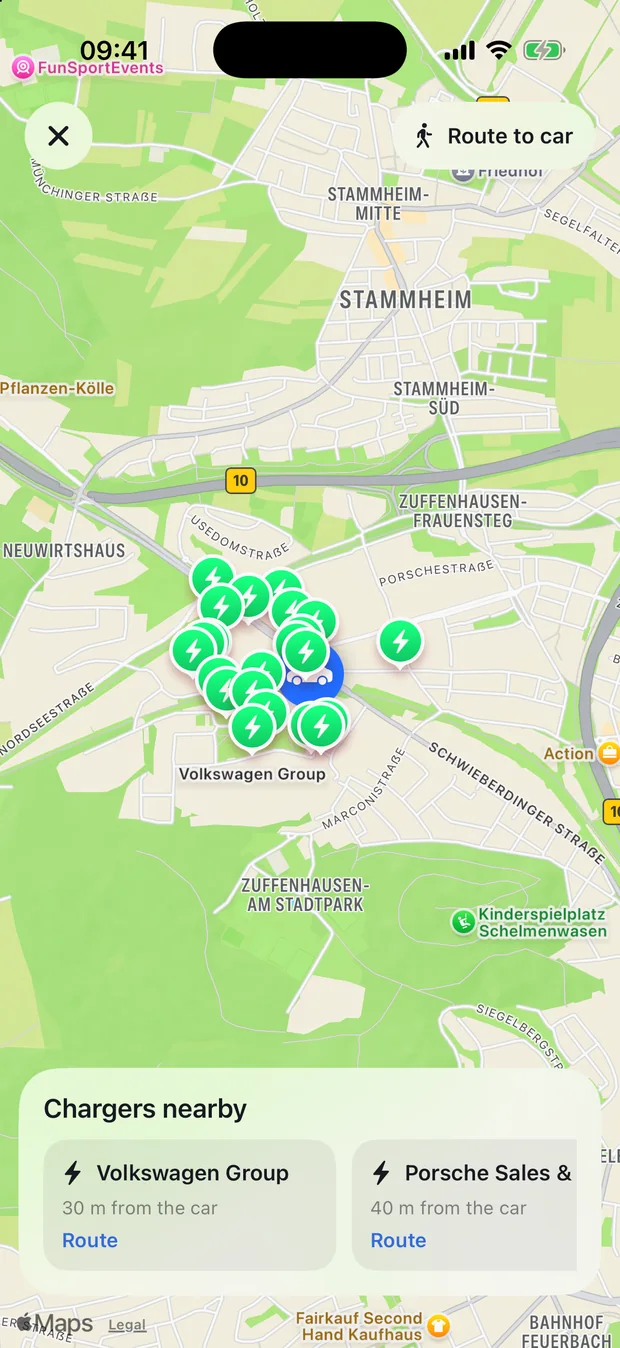
Location view: parked at the address, car seen from above on the map

Location

Parked at

Always know where it is.

  • The address, on a quiet map of the street, with your car seen from above.
  • Tap to zoom out into a full map with chargers nearby.
  • Walking route back to the car.
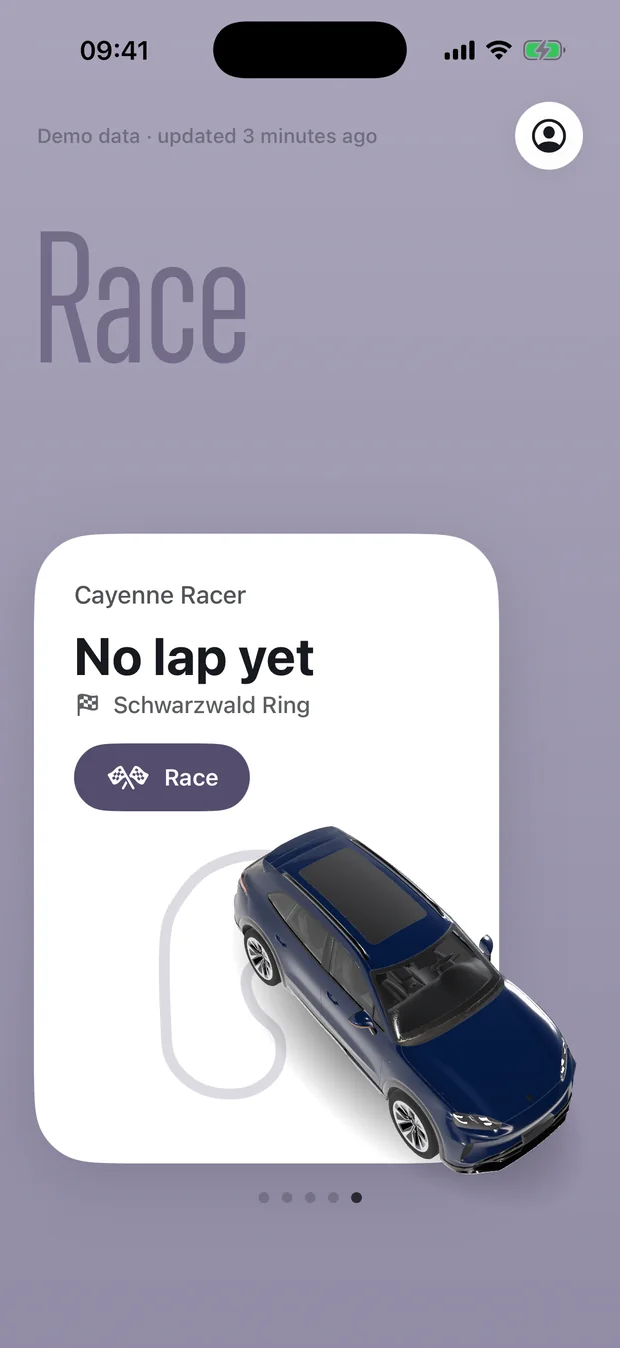
Race view: Cayenne Racer on the Schwarzwald Ring

Race

Cayenne Racer

A game, built in.

  • Race the Cayenne in landscape and chase your best lap.
  • Every drive you record turns into its own race track.
  • Photos taken along the way decide what the scenery looks like.

Tap a card to go deeper.

The card grows to full height, the car turns to a view from above, and everything else appears underneath.
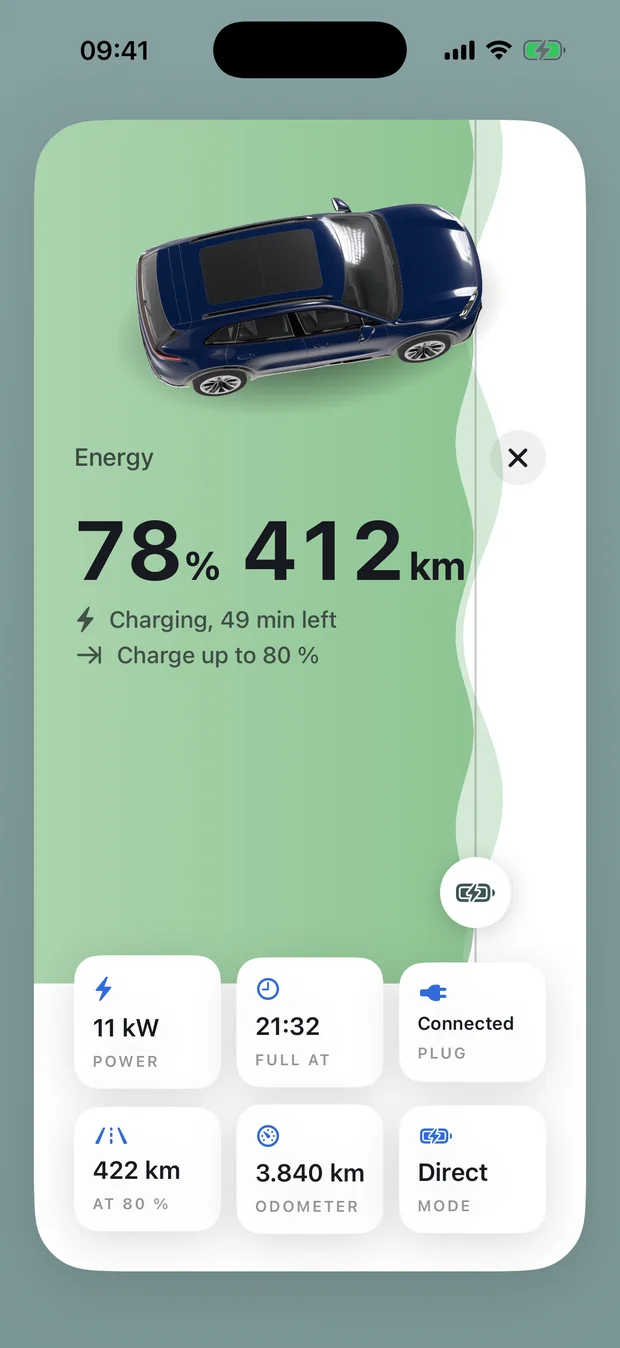
Expanded Energy card with charging power, full-at time, plug, range at 80 %, odometer and mode
Charging in detailPower, when it’s full, plug state, range at your target and the odometer.
Expanded Climate card with unlock, honk and flash, doors, and status of lock, doors, tailgate and windows
Doors, locks and lightsUnlock, honk and flash, and the state of every opening.
Full-screen map with chargers nearby and a route to the car
Chargers around the carThe location card opens into a live map with chargers and routes.
Your paint colourThe 3D car is painted in the colour your car reports.
Pull to refreshPull any view down to wake the car for fresh values.
Waits for the carCommands only show as done once the car confirms them.
Demo modeNo car? Tap “Use demo data” to look around.

How to install

My Cayenne isn’t in the App Store. Five steps, about ten minutes, only once.

Why the extra steps? The app is signed with George’s private developer certificate, not through the App Store. iOS will only install it on iPhones that George has registered by their device ID (UDID) — so your iPhone has to be added first.
1

Find your iPhone’s UDID

The UDID is a long code that identifies your iPhone. Pick whichever is easiest:

  1. Connect your iPhone to the Mac with a cable and unlock it (tap Trust if asked).
  2. Open Finder and click your iPhone in the sidebar under Locations.
  3. Click the grey line under the iPhone’s name a few times until it shows UDID.
  4. Right-click it and choose Copy UDID.
2

Send it to George and wait for the go-ahead

Send George your UDID and your iPhone model (e.g. iPhone 17 Pro) in a message. He registers your iPhone and publishes a new build on this page, then lets you know.

Don’t install before he says it’s ready — until your iPhone is in the build, iOS refuses with “Unable to Install”.
3

Install from this page, in Safari

Open this page on your iPhone in Safari (not Chrome, and not inside WhatsApp, Instagram or Mail), tap the button and confirm with Install. Then go to your Home Screen and watch the icon load.

Install My CayenneVersion 1.0 (1) · 22 Oct 2026

QR code for this page

On a computer? Scan this with your iPhone’s camera to open the page there.

On the Home Screen the app is called Electric Porsche.

4

Turn on Developer Mode

The first time you open the app, iOS says “Developer Mode required”. That’s expected for privately signed apps:

  1. Open Settings › Privacy & Security › Developer Mode (near the very bottom).
  2. Turn it on and tap Restart.
  3. After the restart, unlock the iPhone, tap Turn On and enter your passcode.

The Developer Mode switch only appears after the app is installed. You only do this once.

5

Open it and sign in

Tap the person icon at the top right and sign in with your My Porsche account (Porsche ID) — the same one you use in Porsche’s own app. Your car appears in a few seconds. Unlocking asks for your S-PIN.

Just curious? Tap Use demo data instead to try every view without a car.

iPhone with iOS 18 or laterRegistered by George (steps 1–2).
A Porsche IDWith a Cayenne Electric linked to Porsche Connect — or use demo mode.
“Ask” about tripsNeeds iOS 26 and an iPhone with Apple Intelligence. Everything else works without.

If something doesn’t work

“Unable to Install” or “Integrity could not be verified”

Your iPhone isn’t in the current build yet. Check that George has your UDID and has confirmed the new build, then tap Install again. If the download started before he updated the page, delete the half-installed icon first.

Nothing happens when I tap “Install My Cayenne”

Only Safari can install apps from a web page. If you opened the link in another browser or inside a messaging app, copy the address and paste it into Safari.

I can’t find Developer Mode in Settings

It only shows up once a privately signed app is on the iPhone. Install the app first (step 3), try to open it once, then look again under Settings › Privacy & Security, at the very bottom.

“Untrusted Developer”

Go to Settings › General › VPN & Device Management, tap Apple Development: George Schell and choose Trust. Then open the app again.

The app suddenly won’t open any more

Privately signed builds have an expiry date; the current one runs until 28 February 2027. Before then, George will post a new build here — just install it again over the old one. Your sign-in and data stay.

How do I get updates?

Come back to this page and tap Install again. The version and date on the button show which build is online.

Is my Porsche password safe?

Your password goes straight from your iPhone to Porsche’s own login server — it never passes through George or any other server. The app keeps only the login session, in the iPhone’s Keychain. For unlocking, it sends just a hash of your S-PIN, never the PIN itself.